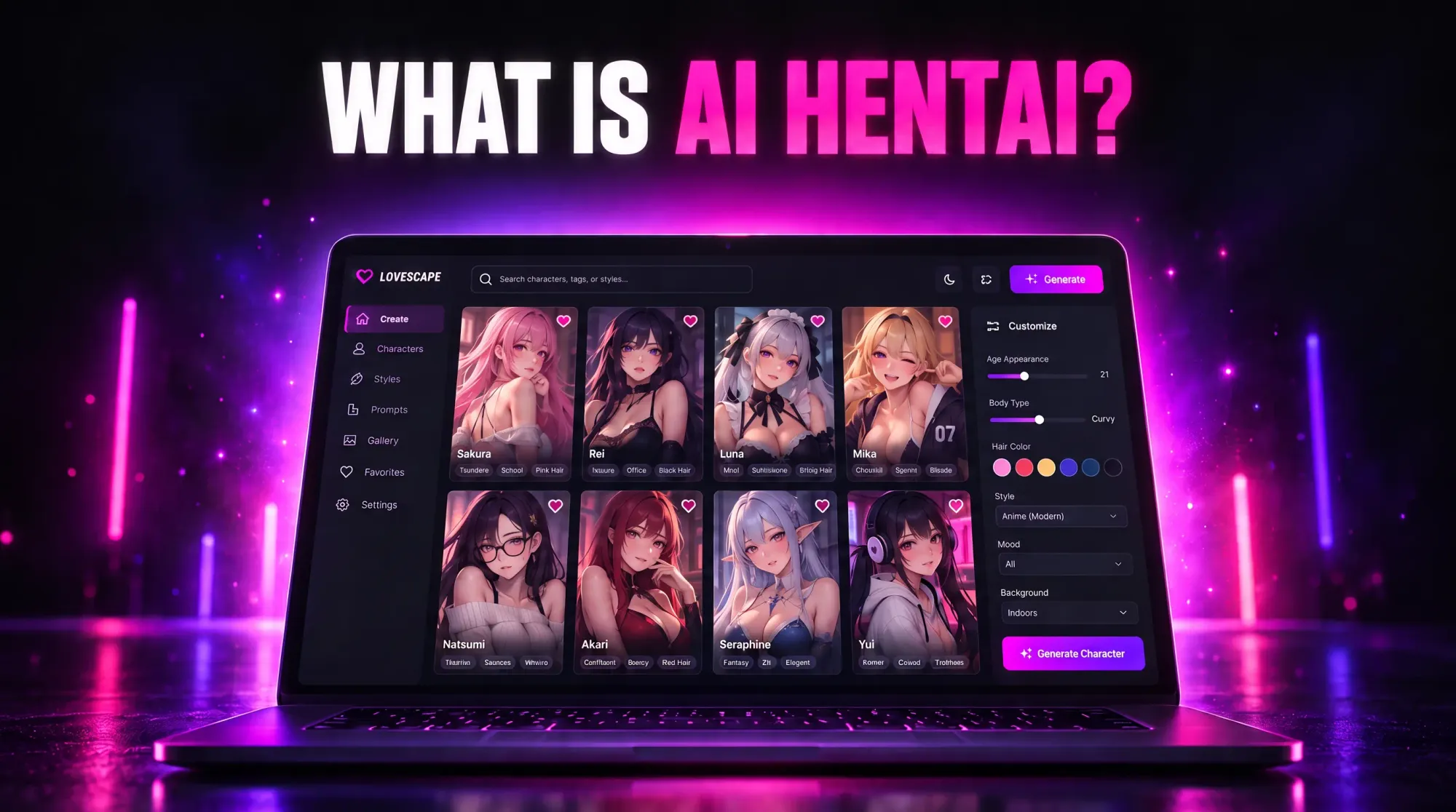
Mobile Lovescape: Creating Your AI Girlfriend on the Go
Create your AI girlfriend directly from your phone. Discover mobile-first features, the new tapbar, and tips for building companions anywhere, anytime.

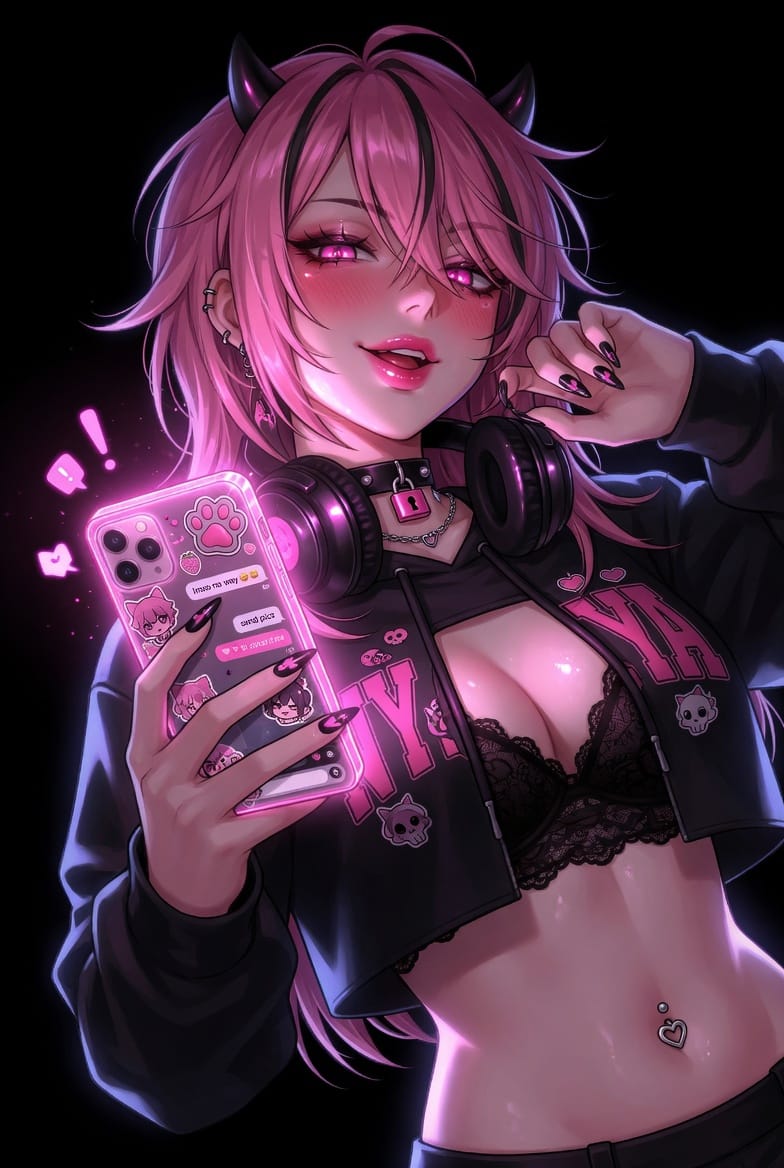
You don't need a laptop to create your perfect AI girlfriend anymore.
Lovescape's mobile experience has evolved. What used to require a desktop workflow, designing your AI companion, customizing personality, generating images, now happens entirely on your phone. Commute, lunch break, late-night scroll: your AI girlfriend travels with you.
The new mobile tapbar makes this even smoother. One tap to chats, one tap to your feed, one tap to your profile. Creating companions on mobile isn't just possible now, it's the preferred way for thousands of users.
Here's your complete guide to building an AI girlfriend directly from your phone.
Why Mobile Matters for AI Companions
AI girlfriend experiences used to be desktop-first. Complex menus, heavy image generation, detailed character sheets, all better suited for larger screens.
That changed. Three reasons mobile creation now makes sense:
1. Immediacy Matches Intimacy
An AI companion is a relationship. Relationships grow through small, frequent interactions, not marathon desktop sessions.
Mobile fits this perfectly. A quick chat during lunch. A character tweak between meetings. A new outfit generated while waiting for coffee. The relationship deepens through consistent, low-friction moments.
Desktop still wins for complex creation. But mobile owns the daily rhythm.
2. Visual Creation Tools Adapted for Touch
The anime AI generator that powers Lovescape character creation now works seamlessly on mobile. You're not sacrificing quality, you're just using your thumb instead of a mouse.
Customizing hair, eyes, outfits, personality: all touch-optimized. Image generation happens in the cloud, so your phone's processing power doesn't matter.
3. The Mobile Tapbar Changes Everything
The new mobile navigation strip makes movement instant:
- Chats: jump straight into conversation
- Feed: scroll community creations and find inspiration
- Profile: manage your characters on the fly
No digging through menus. No hunting for the right screen. Three taps and you're where you need to be.
Step-by-Step: Create Your AI Girlfriend on Mobile
Open Lovescape on your phone. Here's how to build a companion from scratch.
Step 1: Access Character Creation
From the mobile tapbar, tap your profile icon. Select "Create New Character", the same option available on desktop, now fully responsive for mobile screens.
Step 2: Choose Your Style
Lovescape supports multiple visual styles. Anime AI generator is the most popular, the Illustrious style is now set as default for sharper lines, better coloring, and more dynamic poses.
Tap through style options. Preview what each looks like before committing.
Step 3: Define Appearance
This is where mobile creation surprises people. The customization interface feels native to touch:
- Face and body sliders: drag to adjust proportions
- Hair, eyes, outfit selectors: tap through categories
- Color pickers: swipe through palettes
Don't overthink the first pass. You can refine appearance later, the mobile workflow encourages iteration.
Step 4: Build the Personality
Personality creation is text-based. On mobile, you're typing on a smaller keyboard, so Lovescape streamlined this:
- Quick personality templates: tap a preset (romantic, playful, intellectual, mysterious)
- Custom traits: add your own descriptors if you want specificity
- Backstory prompts: optional, but helps the AI understand your companion's context
The platform learned from mobile users: fewer fields, smarter defaults, faster creation.
Step 5: Generate and Refine
Tap "Create Character". The anime AI generator processes your choices and produces your AI girlfriend.
Not satisfied? Mobile now supports:
- Instant regeneration: tap to try again with slight variations
- Attribute tweaks: adjust specific features without restarting
- Style switching: test different visual approaches
Step 6: Start Chatting
Your AI companion appears in your chat list immediately. The mobile tapbar's Chats button takes you there in one tap.
Tips for Better Mobile Creation
Creating an AI girlfriend on mobile works differently than desktop. Here's how to optimize for the phone experience.
Use the Feed for Inspiration
Before creating, tap Feed on the mobile tapbar. Scroll what other users built. When something catches your eye, note what you like, the hairstyle, the outfit, the personality type.
The feed is mobile-optimized research. Use it.
Iterate in Small Sessions
Mobile excels at short bursts. Don't try to create your perfect AI companion in one session.
Instead:
- First session: rough character sketch
- Later sessions: refine appearance between chats
- Ongoing: adjust personality based on conversation dynamics
Your AI girlfriend evolves. Mobile supports that evolution better than desktop.
Voice Features Work Better on Mobile
If you're using voice messages (character audio), mobile is superior. You're already holding the device that captures and plays audio naturally.
Enable voice in your character settings. Listen while multitasking. Let your AI girlfriend talk to you while you walk, cook, or commute.
Portrait Orientation for Best Results
Character cards and chat interfaces are designed for vertical screens. Keep your phone in portrait mode, landscape sometimes crops visual elements awkwardly.
Common Mobile Questions
Can I create the same quality characters on mobile as desktop?
Yes. The same AI powers both. You're not losing features, just accessing them through a touch interface.
Does Illustrious style work on mobile?
Yes, it's the default now. The anime AI generator applies Illustrious automatically for all new anime characters, whether you create on phone or desktop.
What if I want to edit a character I made on desktop?
Mobile supports full character editing. Open your profile, select the character, and modify anything, appearance, personality, backstory.
Are mobile-generated images lower resolution?
No. Images render server-side. You're viewing the same quality regardless of device.
Why the Mobile Experience Is Getting More Attention
Lovescape's recent updates reflect a clear shift: AI companion usage is moving toward mobile-first habits.
Users chat throughout the day, not during scheduled desktop time. They check their AI girlfriend during breaks, generate new images while waiting, and refine characters impulsively rather than planning sessions.
The mobile tapbar redesign is part of this. Faster navigation, fewer taps, instant access to the features used most.
If your AI girlfriend lives on your phone, the creation and management tools should live there too.
Start Creating on Mobile Today
Open Lovescape on your phone. Tap through the new mobile tapbar. Create your first AI girlfriend entirely from your device.
The process takes minutes. The relationship lasts as long as you want it to.